The Quartermaster Dashboard is your control centre. It shows live totals, every item in the store, incoming booking requests, and what's due back. Everything is saved to the group's central sheet automatically.
Open the dashboard and log in
Top menu → Portals → QM Dashboard, then enter the Quartermaster password.
Read the dashboard at a glance
Across the top you'll see live totals — item types, total units, bookable units, and any maintenance flags. The tabs across the top switch between the four areas of your job.
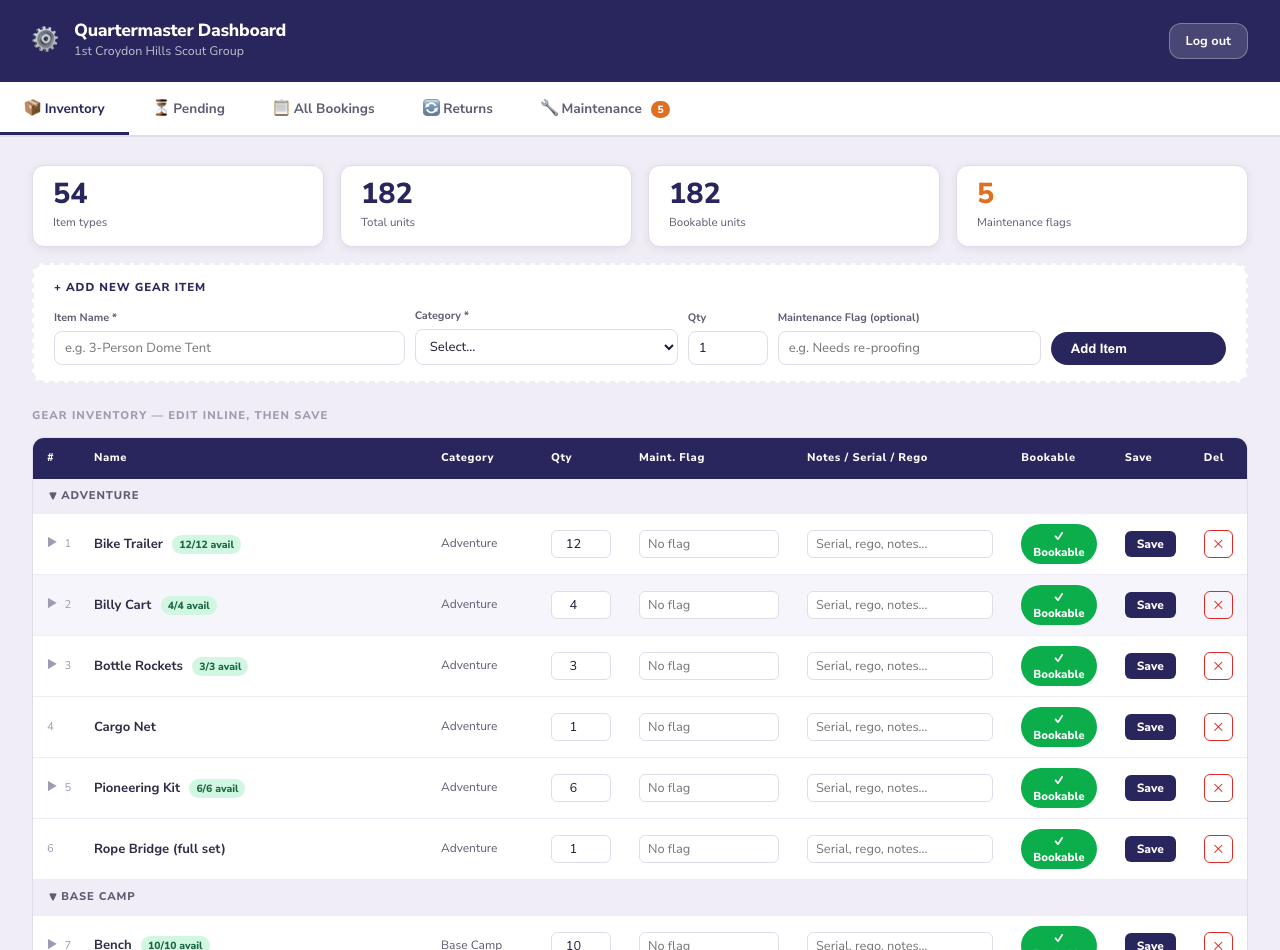
The Inventory tab — live totals up top, the full gear list below.
Manage inventory
On the Inventory tab you can:
- Add gear — use the "Add New Gear Item" box (name, category, quantity).
- Edit inline — change a quantity, add a serial/rego/note, or set a maintenance flag, then tap Save on that row.
- Toggle bookable — mark an item unavailable while it's being repaired.
Approve bookings
The Pending and All Bookings tabs show gear requests from leaders. Review each request, then approve or decline — leaders are notified by email. "All Bookings" also has a calendar view so you can see what's out and when.
Process returns & maintenance
The Returns tab lists gear due back. Tick off each item as it comes in; if something needs attention, flag it as maintenance in the same step and it's automatically marked unbookable until fixed. The Maintenance tab (with the count badge) is your running repair list.