The Event Creator is a simple 5-step wizard. You fill in the event, add the shifts you need helpers for, and hit publish. It gives you a link to share with families and a private dashboard to track who's signed up.
Open the Event Creator and log in
In the top menu, open Portals → Event Creator. Enter the leader password when prompted.
Fill in the event details
Choose the event type (BBQ, Camp, Activity Day, and so on), then add the title, date, start time, location, and a short note for volunteers — for example what to wear or where to meet. Tap Next: Organiser Details.
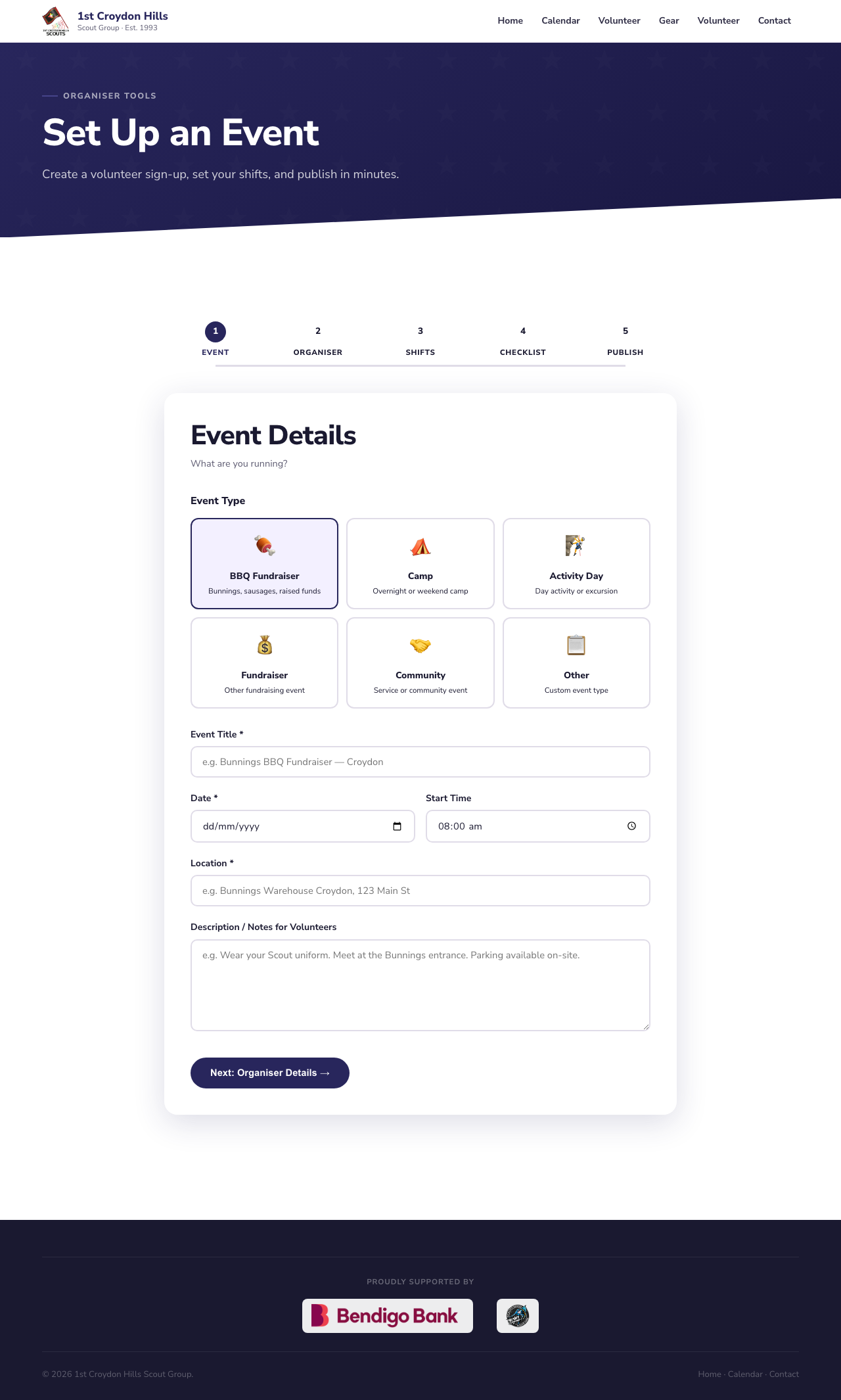
Step 1 — pick a type and fill in the basics.
Add your shifts
On the Organiser step, add your name and contact email (this is where sign-up notifications and questions go). Then on the Shifts step, add each time slot you need helpers for — give it a label (e.g. "Setup", "Shift 1"), a time, and how many volunteers you need. Add as many shifts as you like.
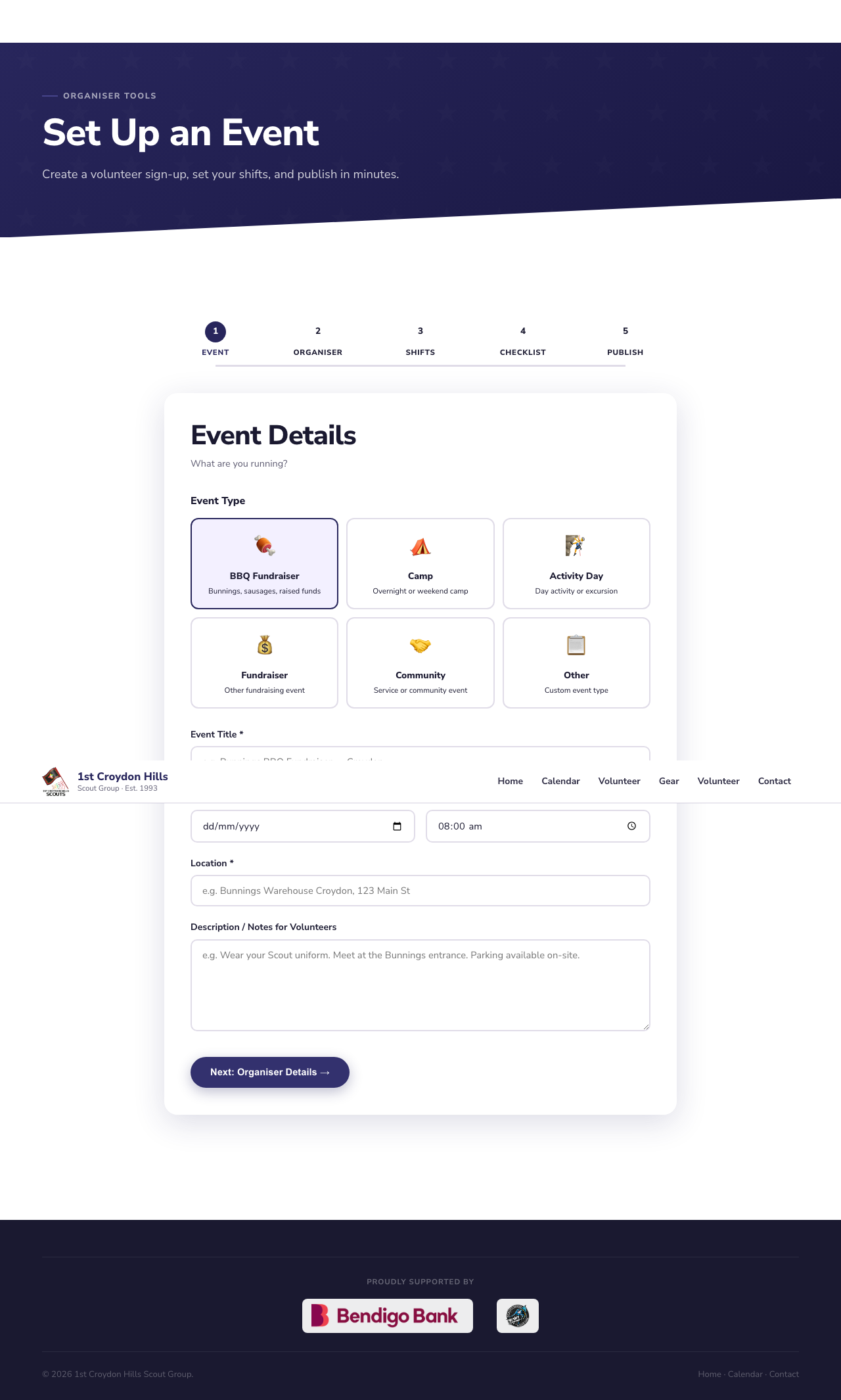
Each shift shows to parents with the number of spots remaining.
Review and publish
The Checklist and Publish steps let you do a final review, then tap 🚀 Publish Event. That's it — your event is live.
Track who's coming
Open your Organiser Dashboard any time (Portals → Organiser Dashboard, same leader password) to see every shift, who's signed up, and how full each slot is. You can remove a sign-up or adjust shifts from there.